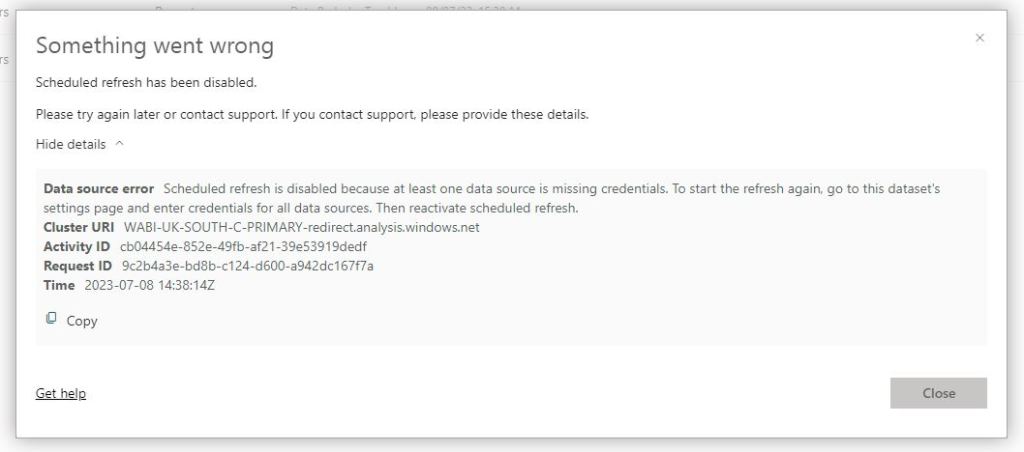
You may be asking yourself, “How do I get my scheduled refreshes to work in Power BI?” You’ve been told the beauty of Power BI is that it’s easy to see insights into your data, but that’s only useful when your data is up to date. You may have tried to schedule a refresh, and instead be met with a number of errors, without much clue as to why they aren’t working. In this post we’ll cover the two most common issues found when setting up a schedule refresh:
- Your data in Power BI is not connected to cloud data
- You’ve been told the dataset is missing credentials
Your data is not connected to the cloud
Summary: your data needs to be in the cloud and depending on your source, you may have to connect to it in a way that seems counterintuitive.
For your dataset to refresh, your data must sit in the cloud. Power BI and Microsoft pride themselves on the bredth of data points you can connect to, but it isn’t always clear on which ones are cloud connections.
As I’ve been there myself and in supporting others hundreds of times, I’m going to use an example with excel that covers 99% of the scenarios relating to this error.
Assumption: you have excel data as your source in Power BI, you’ve published a report and tried to refresh your data but you’re hit with an error
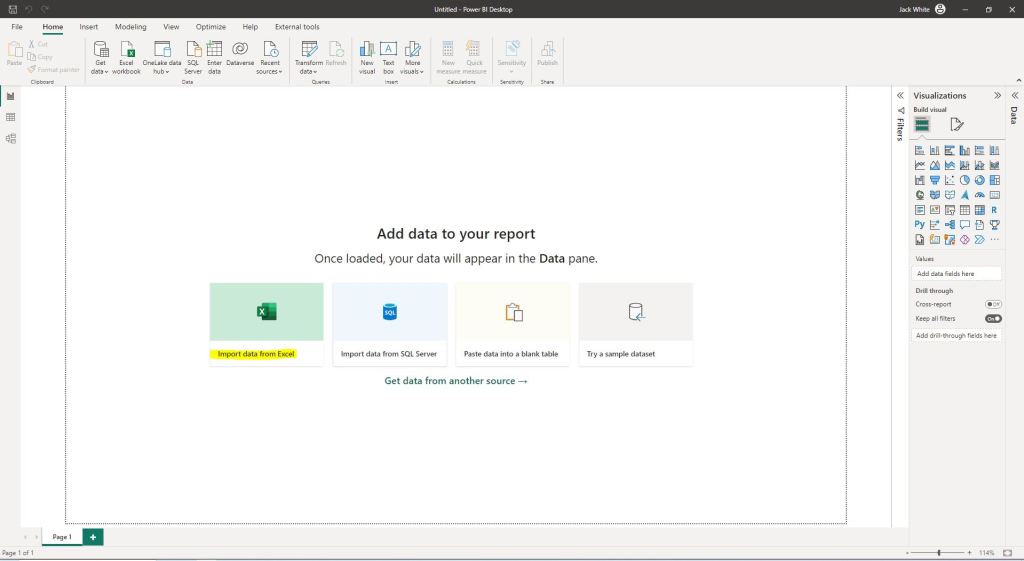
It is likely that you have used your intuition and pressed the big button “import data from excel” that Power BI conveniently shows you when you first open a blank Power BI file. I almost never use this as an option. This is because when I’m using excel, it’s mostly with others, shared on a SharePoint site, and constantly updating. This connector in Power BI is great when you’re first getting started and staying locally on Power BI desktop, but when you’re ready to share your reports with others, it’s better to explore different options.
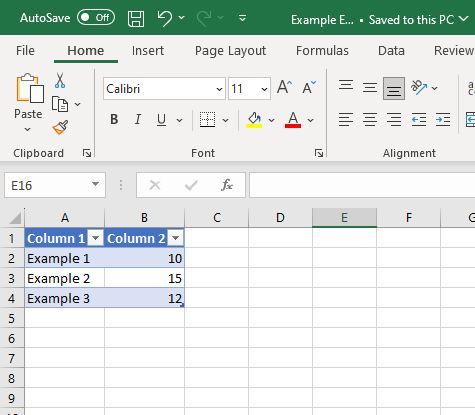
I’m using a very basic table in excel as my data, and I want to make sure it is saved in a cloud resource such as OneDrive or SharePoint. In this example I’ll show you with the file saved in OneDrive, but please come back to a future post where I’ll compare using both these platforms for storing your excel files.
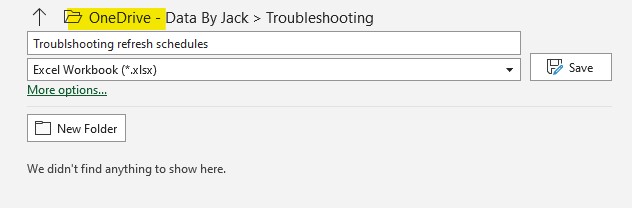
- Make sure your excel file is save in OneDrive
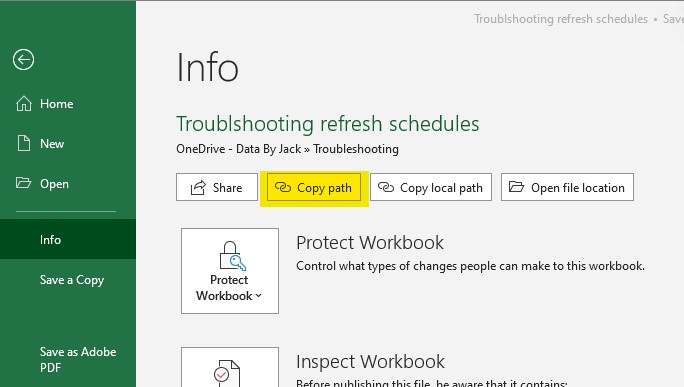
- Once you have saved it to OneDrive, got to file>info and copy the path of the excel file
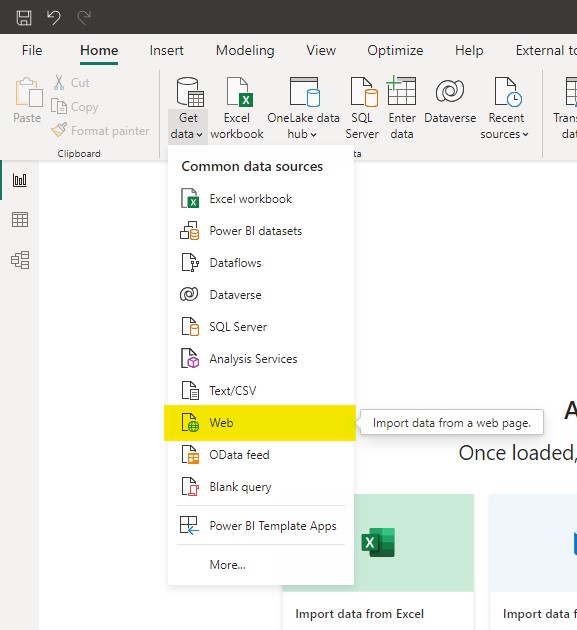
- Once you have the Web URL, go back to Power BI and connect to your data by using the web
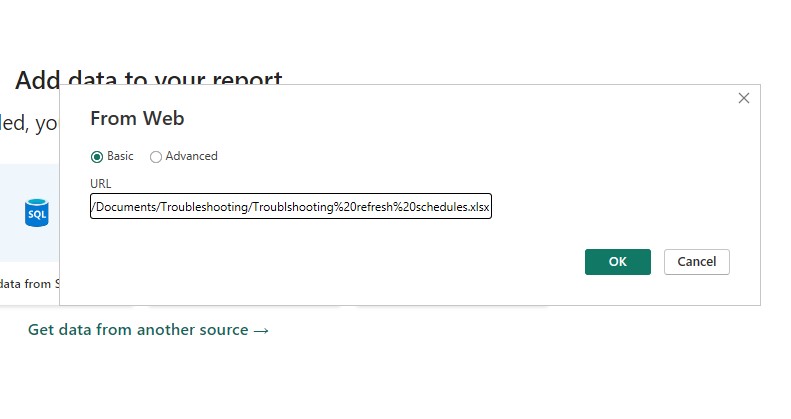
- Paste in the URL of your excel file, and make sure you remove the following [?web=1] trailing text at the end of what you paste so it ends in .xslx or which ever excel file format you saved it as
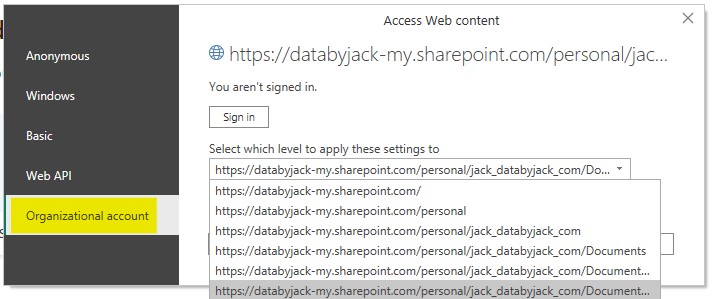
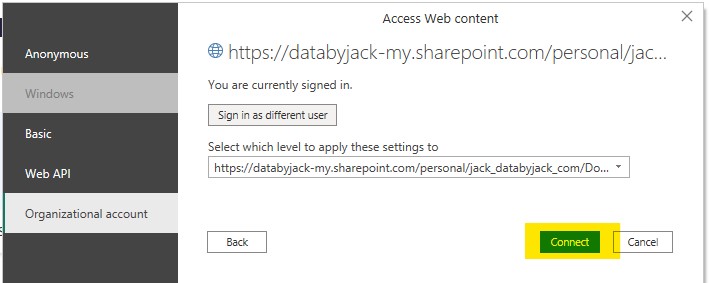
- A pop-up may then appear asking you to log into the content.
- Make sure Organisational account is selected,
- On the drop down menu, select the option at the bottom of the list
- Sign in with your windows account
- Connect to your data
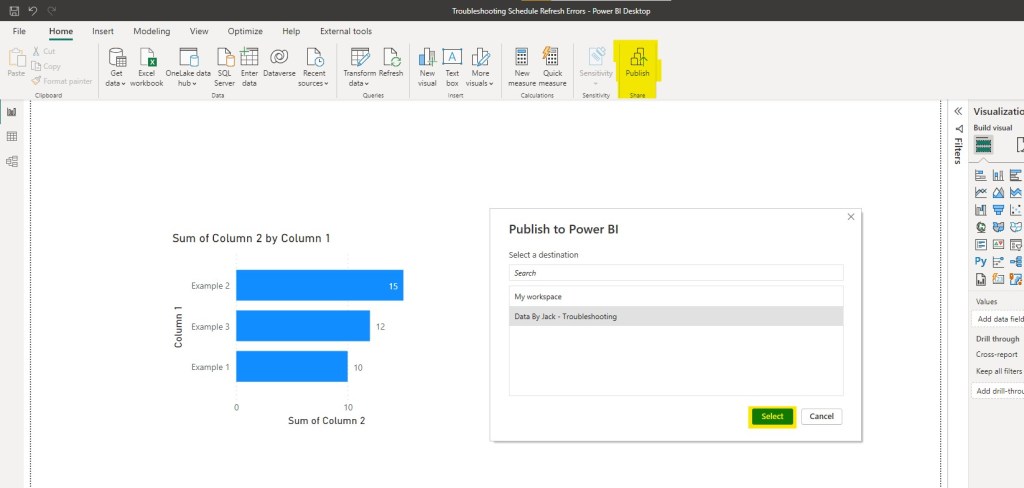
- Build your report, adding your visuals and then publish to the Power BI online service
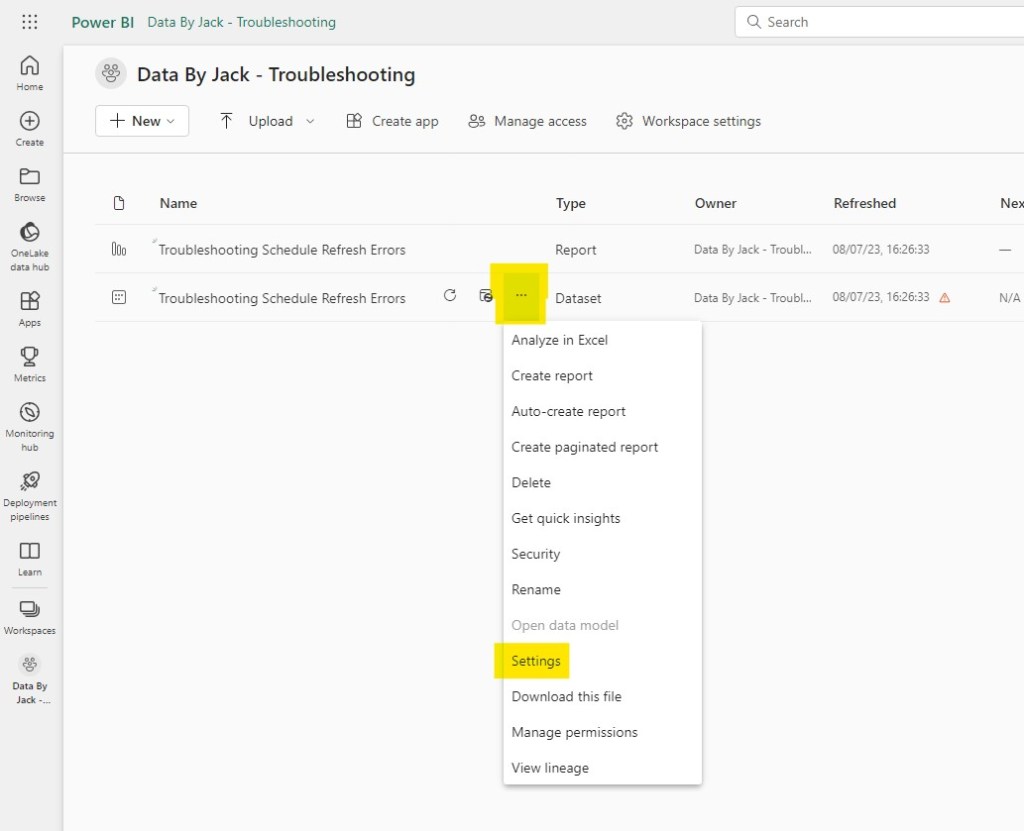
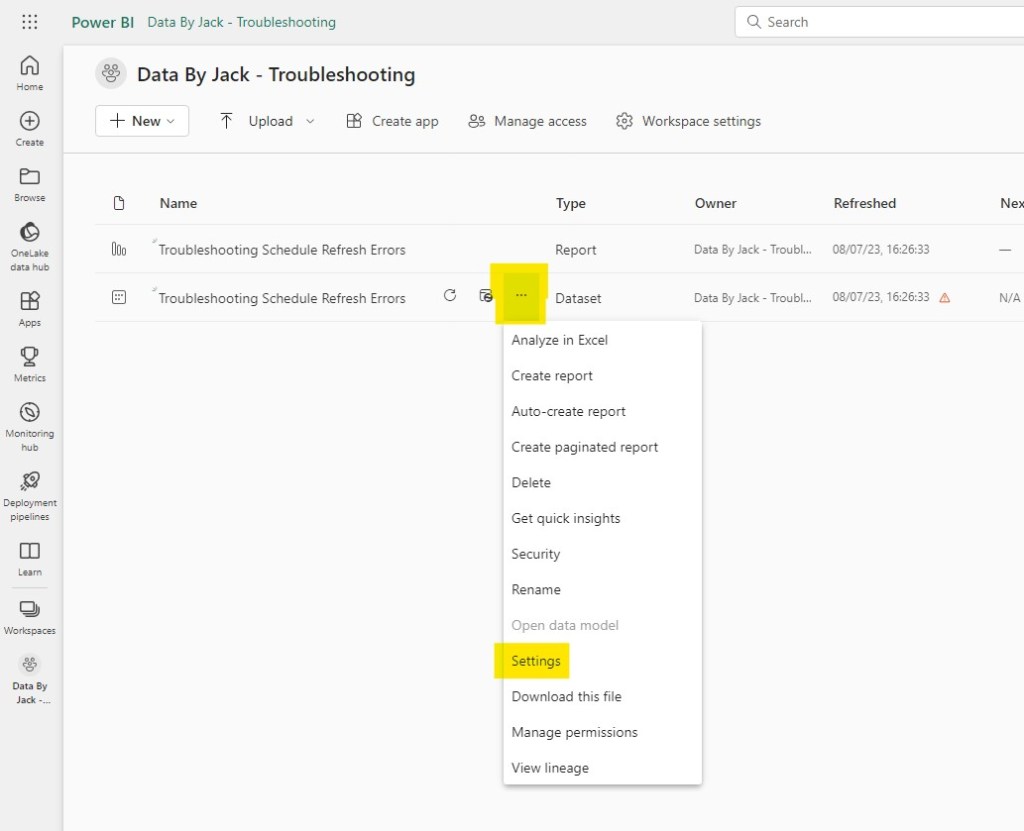
- Go to the workspace you have published the report to and then hover over the dataset until three dots appear. Here you can then go to the dataset settings menu
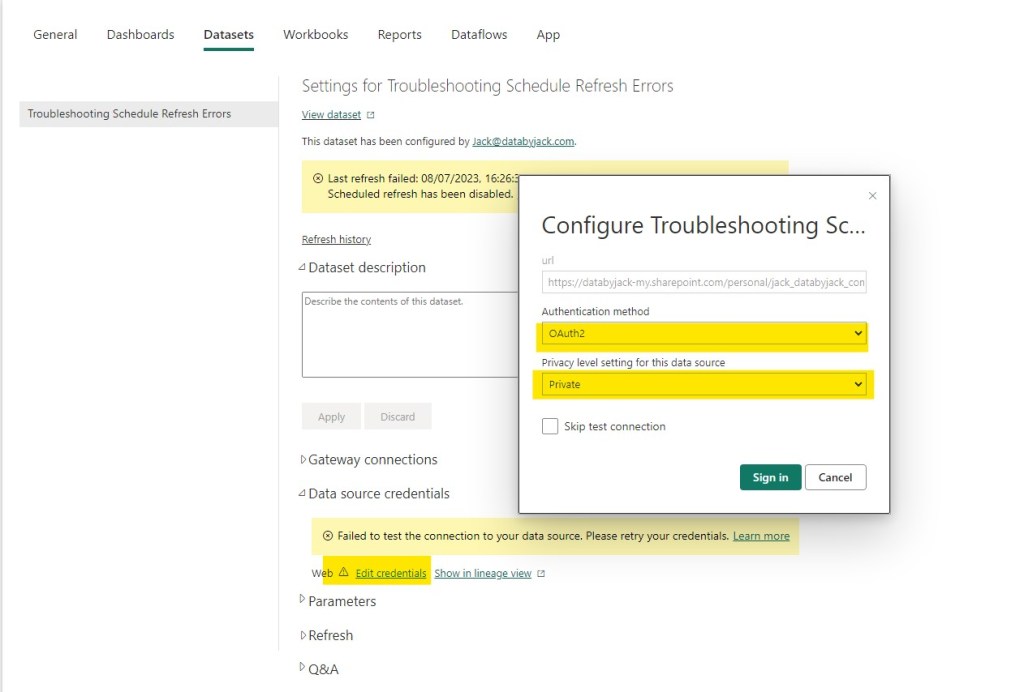
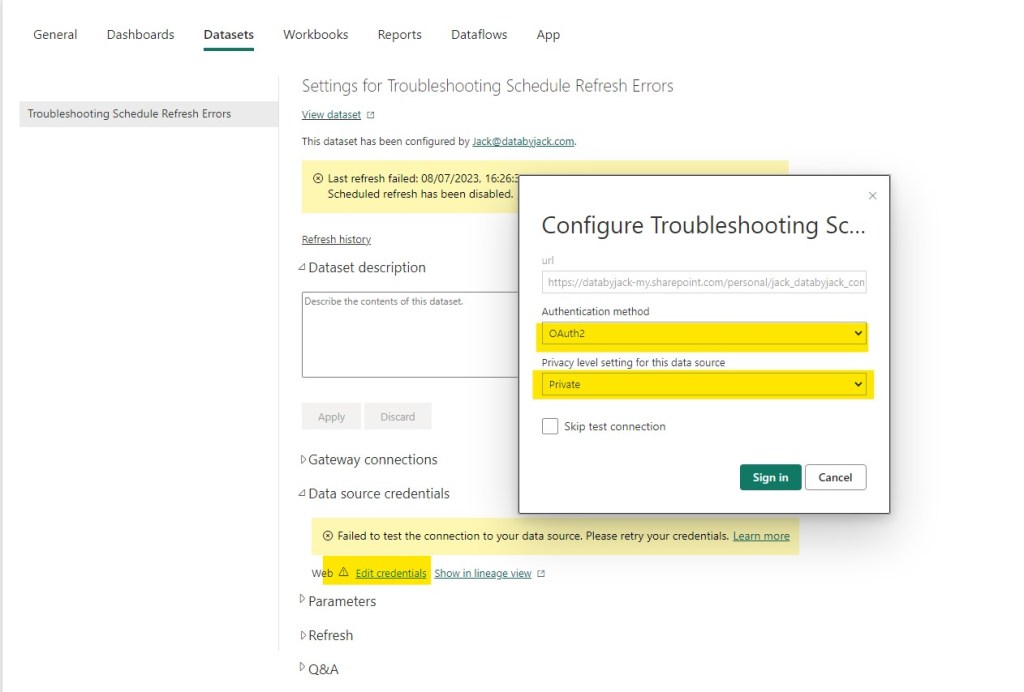
- Once in the dataset settings, go to “Data source credentials” and edit the credentials. A popup will appear,
- In authentication method, select OAuth2
- In Privacy level, select Private
- Sign in
- After signing in successfully, you’ll then have the option to set your refresh schedule.
- Go to refresh
- Add the times suitable to you
- Press Apply
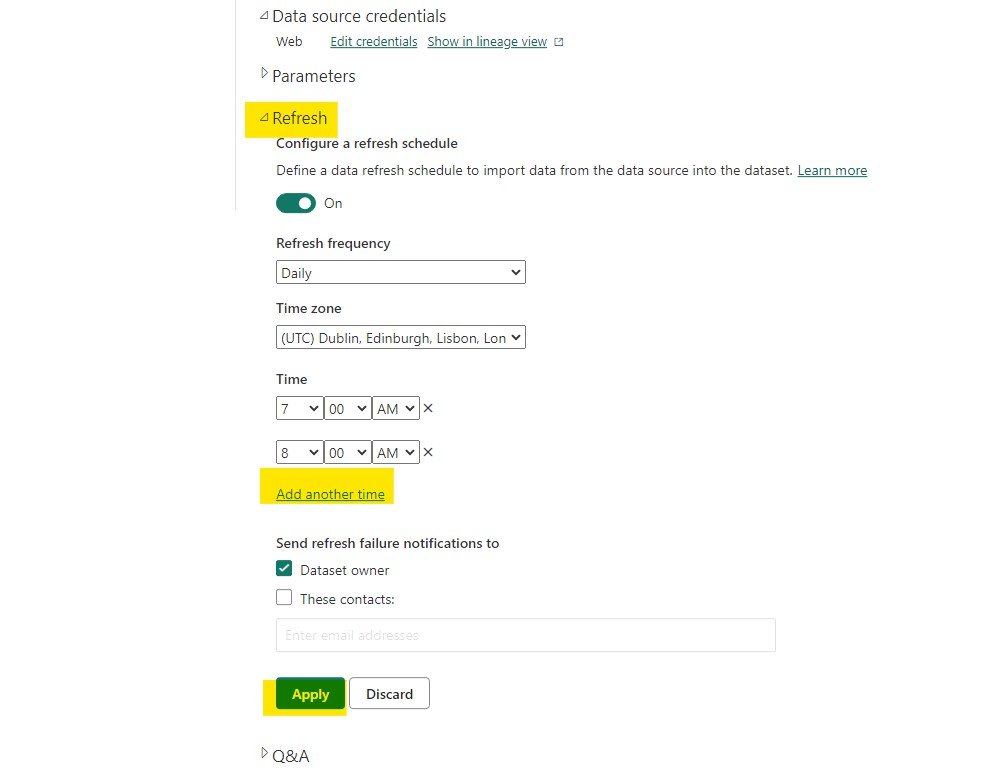
Congratulations! You’ve successfully set a schedule of refreshes! Your datasets will start a refresh on the hours you have stated, going back to your data source and importing the latest data.
Your dataset is missing credentials
Summary: your data is in the cloud, but it does not have credentials verifying the connection
It may be that you have set up your scheduled refresh, and come back to it with an error you’re missing credentials. This can happen periodically, for example after password refreshes, someone takes over the dataset. But fear not, as we’ve already covered how to resolve this.
In step 8 above, we can go to data source credentials and add them back in. It’s as simple as that!
I hope you’ve found this post useful on how to resolve the most common issue I see when people come to me saying they have issues setting a schedule refresh. A bonus to going through these steps is not needing a Power BI gateway, quite an advance topic when your data is on premise, which I think is generally overkill for most excel files users have in their Power BI reports.
Have you got any other common errors that appear when you try to refresh your reports? I’d be keen to hear more in the comments below
 Data by Jack
Leave a comment